
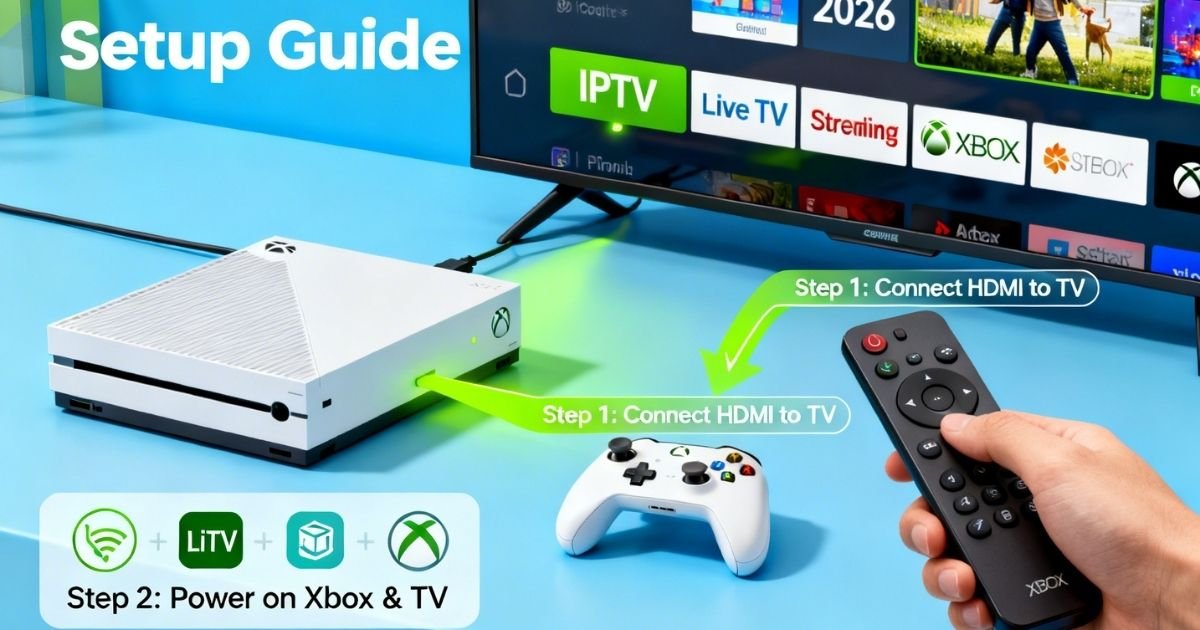
Setting up IPTV on Xbox is not as difficult as many people think. Thousands of live TV channels, sports, and movies are available on your Xbox One, Series S, or Series X without needing a cable box.
This guide covers the most recommended apps, easy step-by-step installation, the best providers in Canada, and troubleshooting tips to get your Xbox streaming experience running smoothly in 2026.
What You Need Before You Start
Before setting up IPTV on Xbox, you need three things:
- A live IPTV plan with an M3U URL or Xtream Codes.
- Xbox One, Series S, or Series X connected to the internet.
- A steady internet connection, 25 Mbps for HD and 50 Mbps for 4K.
Pro Tip: Use a wired Ethernet connection instead of Wi-Fi. It reduces buffering and keeps your Xbox streaming sessions rock solid.
Best IPTV Apps for Xbox in 2026
Xbox is based on Microsoft, so installing Android APKs is not possible. You need to use apps from the Microsoft Store only. Here are your best picks:
| App | Best For | Cost | M3U Support |
| MyIPTV Player | Beginners | Free | Yes |
| Kodi | Advanced users | Free | Yes |
| VLC Media Player | Quick testing | Free | Yes |
| IPTV Smarters Pro | Full TV-style UI | Paid | Yes |
MyIPTV Player — Easiest to Use
MyIPTV Player is the simplest app to get IPTV on Xbox running. It loads M3U playlists fast and has a clean interface that works well with a remote. It also supports EPG (Electronic Program Guide) so you can see what is currently playing.
Kodi — Best for Power Users
Kodi gives you full control over your watch TV Xbox setup. Add the PVR IPTV Simple Client add-on to load M3U playlists. It takes a few extra steps but offers the most features and customization.
VLC Media Player — Quickest Install
VLC is great if you want to test your stream quickly. Your channels load in seconds using your M3U URL. It does not have a proper TV guide, but it is very useful for quick access.
How to Set Up IPTV on Xbox (MyIPTV Player)
Follow these steps and you will have IPTV on Xbox running within 10 minutes.
Step 1 — Download the App
Press the Xbox button on your controller, go to My Games and Apps, select Search Apps, search for “MyIPTV Player,” then select Get and wait for installation to complete.
Step 2 — Add Your M3U Playlist
Open MyIPTV Player, go to Settings, select Add New Playlist and EPG, enter the M3U URL provided by your provider, then hit Next and click Add.
Step 3 — Start Watching
Wait 30 to 60 seconds for the playlist to load, open Live TV, select your channel list, and start watching.
That is all it takes. Your IPTV on Xbox setup is now complete.
Xbox Streaming Settings for Best Performance
Once configured, these settings will help you get the best Xbox streaming performance:
| Setting | Best Option | Why It Helps |
| Connection Type | Wired Ethernet | Greatly reduces buffering |
| Hardware Acceleration | Enabled | Handles 4K without lag |
| Buffer Size | High | Prevents freezing during live sports |
| Video Quality | Auto or 1080p | Balances quality and speed |
Best IPTV Providers in Canada (2026)
Your setup is only as good as your provider. Here are the best services available for Canadian customers looking to watch Xbox TV in 2026:
| Provider | Channels | 4K Support | Free Trial | Starting Price |
| WatchingIPTV.com | 10,000+ | Yes | Yes | ~$12/mo |
| Eternal IPTV | 8,000+ | Yes | No | ~$15/mo |
| Apollo Group TV | 7,000+ | Yes | Yes | ~$14/mo |
WatchingIPTV.com is the most preferred IPTV on Xbox option in Canada. Here is why it stands out:
- 10,000+ channels covering Canadian sports, news, and entertainment.
- 4K and HD quality with very low buffering rates.
- Full support on Xbox with MyIPTV Player, Kodi, and VLC.
- Free trial so you can test quality before committing.
- 24/7 customer support to help with setup problems.
If you want to do IPTV Xbox streaming and watch Canadian channels without any headaches, WatchingIPTV.com is the first place to check.
IPTV Troubleshooting on Xbox
Channels Not Loading
Double check your M3U URL, because even one wrong character will break it. Try refreshing the playlist in the app settings, and make sure your internet speed is up to the required level.
Buffering or Freezing
Switch to a wired Ethernet connection, enable hardware acceleration in your app settings, and contact your provider if the issue continues, as it is sometimes on their server end.
App Crashing
Clear the cache of your IPTV app in Settings, update the app from the Microsoft Store, and uninstall it if crashes keep happening.
EPG Not Showing
Make sure your plan includes an EPG feed, re-enter the EPG URL in the app settings, and wait up to 24 hours for the guide data to fill in.
Get Started with the Best IPTV in Canada
If you are tired of paying too much for cable and want something that actually works, WatchingIPTV has you covered.
Browse our pricing plans and pick what suits your budget. Want to know more before deciding? Our Best IPTV Canada 2026 page has everything you need. Still have questions? Simply contact our team and we will help you out.
FAQs About IPTV on Xbox
Can I use IPTV on Xbox for free? The Microsoft Store has free IPTV apps, but a paid subscription is needed to access reliable live channels. Free services tend to have poor quality and frequent downtime.
Is 4K streaming available on IPTV on Xbox? Yes. Both Xbox Series X and Series S support 4K. For full picture quality, you will need a 4K-compatible provider like WatchingIPTV.com and a 4K TV.
Which is the best IPTV app for Xbox? MyIPTV Player is the easiest to install. Kodi is better for users who want full control and customization.
Is setting up IPTV on Xbox legal? The apps themselves are completely legal. Legality depends on whether your provider is licensed to stream the content they offer. Always use a legitimate service.
Why does my IPTV buffer on Xbox? Buffering is usually caused by a weak Wi-Fi connection or an unreliable provider. Switch to Ethernet and use a trusted service like WatchingIPTV.com for the best results.
Does IPTV work on Xbox One and Xbox Series X? Yes. IPTV works on all Xbox models. MyIPTV Player, Kodi, and VLC are all available in the Microsoft Store and supported across all four models.

No Responses