
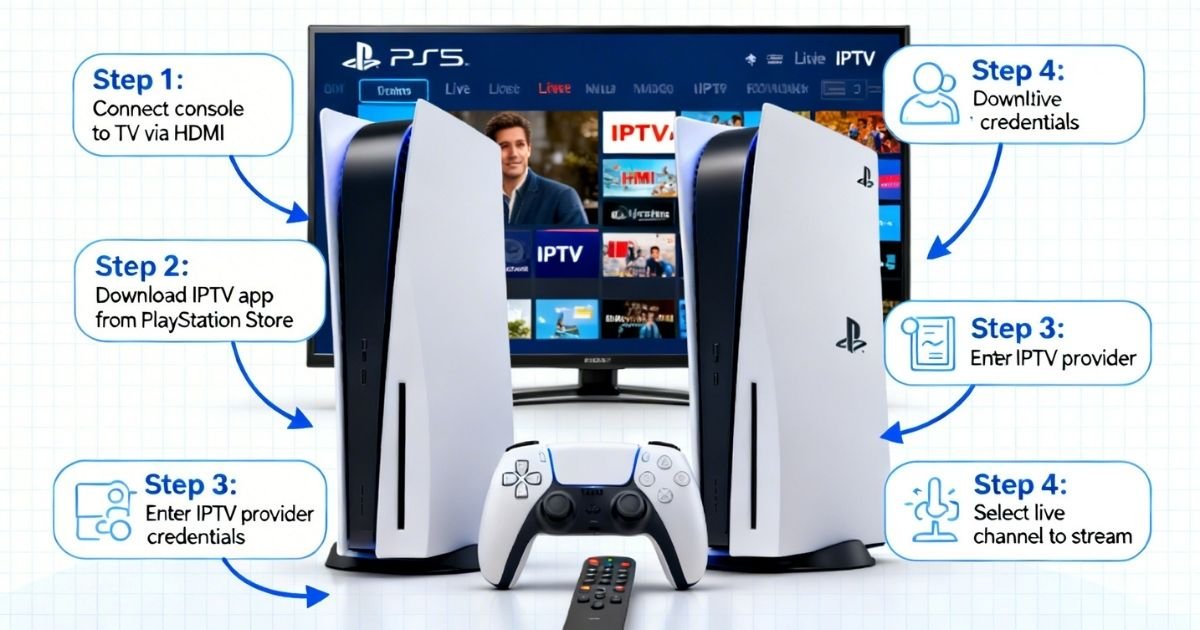
Would you like to stream IPTV on PS5 and PS4 without purchasing extra equipment? Your PlayStation is already a strong entertainment center.
A proper setup lets you stream thousands of live channels, movies, and sports straight to your screen. This guide covers all the ways to do it, so you never miss another show.
Can You Watch IPTV on PS5 and PS4?
Yes, but there is a catch. The PlayStation Store does not have native IPTV applications available from Sony. Apps like IPTV Smarters and TiViMate are not listed there.
There are, however, three trusted workarounds that work perfectly in 2026:
- Web Browser method (easiest, no installation needed)
- Plex Media Server (for advanced users)
- Screen Mirroring (easy and fast)
All three methods support both IPTV PS5 and PS4 consoles.
Method 1: Built-in PS Browser (Easiest Method)
This is the best method to start streaming IPTV on PlayStation. No downloads or installs are needed.
Steps to Follow
- Turn on your PS4 or PS5 and connect to the internet (Wi-Fi or Ethernet).
- Open the Internet Browser from the home screen. If you cannot find it, use the search bar.
- In the browser, go to webtv.iptvsmarters.com.
- Enter your IPTV credentials, either an M3U URL or Xtream Codes (server URL, username, password).
- Browse channels and start watching.
Pro Tip: A wired Ethernet connection makes streaming much smoother. Wi-Fi can cause buffering on 4K streams.
| Requirement | Recommended |
| Internet Speed | 10 Mbps minimum (25 Mbps for HD) |
| Connection Type | Ethernet (preferred) or Wi-Fi |
| IPTV Credentials | M3U URL or Xtream Codes |
| Browser | Built-in PS Browser |
Method 2: Use Plex on PS4 and PS5
Plex is available through the PlayStation Store, making it one of the most reliable ways to watch IPTV on PS5 and PS4.
How to Set Up Plex for IPTV
- Open the PlayStation Store and search for Plex.
- Install the Plex app on your console.
- Open Plex and note the activation code shown on screen.
- On your phone or PC, go to plex.tv/link and sign in.
- Connect your account using the code.
- Install Plex Media Server and the xTeVe tool on your PC.
- Add your IPTV M3U playlist to xTeVe, then connect xTeVe to Plex.
- Go back to your PlayStation and your IPTV channels will appear under Live TV & DVR.
This method provides a complete IPTV console experience, including an EPG (Electronic Program Guide).
Method 3: Phone or PC Screen Mirroring
This works well if you already have an IPTV app running on your phone or laptop.
How It Works
- Mirror your device using PS Remote Play or an HDMI cable.
- Open your IPTV app on your phone (IPTV Smarters, TiViMate, etc.).
- Display everything on your TV through the PS5 HDMI port.
It is not the cleanest setup, but it works right away with no installation required.
Top IPTV Apps on PlayStation
Most apps cannot be installed directly, but they can be accessed through the browser or Plex:
| App | Method | Best For |
| IPTV Smarters Pro | Web Browser | Beginners |
| Plex | PS Store Install | Advanced Users |
| IPTV Blink Player | Web Browser | Quick Access |
| TiViMate | Screen Mirror | Best UI |
Best IPTV Providers for Canada (PS5 and PS4 Ready)
Choosing the right provider is just as important as the setup. Here are the top picks for IPTV on PS5 and PS4 in Canada:
WatchingIPTV.com — One of the highest rated IPTV services in Canada, offering 10,000 live channels, 4K quality, and fast server bandwidth. It works with both M3U and Xtream Codes on PlayStation.
Helix IPTV — A solid Canadian option with excellent uptime.
Beast IPTV — Budget-friendly with wide channel coverage.
WatchingIPTV.com stands out because its simple M3U setup works perfectly with the PS browser method described in this guide.
Troubleshooting IPTV on PS5 and PS4
Buffering or Freezing
- Switch from Wi-Fi to a wired Ethernet connection.
- Upgrade to a faster internet plan (25 Mbps or higher for HD).
- Contact your IPTV provider to check for server issues.
Browser Not Loading IPTV
- Clear the PS browser cookies and cache.
- Try a different web IPTV player URL.
- Restart your modem and console.
Plex Not Showing Channels
- Make sure xTeVe is installed on your PC.
- Confirm that Plex Media Server is open and running.
- Double-check that your M3U URL is entered correctly in xTeVe settings.
PS5 Does Not Have an Internet Browser
- Go to the Library, then Media Apps, and search for the browser.
- You can also search for “Internet Browser” using the controller.
Should You Use a VPN for IPTV on PlayStation?
A VPN adds a layer of privacy and stops your ISP from throttling your streams. It is especially useful when watching sports or international channels on IPTV consoles.
Benefits of Using a VPN with IPTV
- Hides your streaming activity from your ISP.
- Prevents bandwidth throttling.
- Gives access to geo-restricted content.
- Keep your IP address private.
Since PlayStation does not have a built-in VPN option, install the VPN directly on your router instead.
FAQs About IPTV on PS5 and PS4
Can I install an IPTV app directly from the PlayStation Store?
The PS Store does not carry dedicated IPTV apps. The web browser and Plex are the best alternatives.
Does IPTV work in 4K on PS5?
Yes, as long as your IPTV provider supports 4K streams and your internet speed is 25 Mbps or higher.
Is the setup the same for PS4 and PS5?
Yes, the process is nearly identical. Both consoles use the same browser and Plex setup methods.
What is the easiest way to start with IPTV on PS5?
The web browser method with IPTV Smarters is the simplest option since it requires no installation.
Do I need a subscription to watch IPTV on PlayStation?
Yes, a paid IPTV subscription is required. Providers like WatchingIPTV.com offer both M3U and Xtream Codes access.
Get Started with the Best IPTV in Canada
If you are tired of paying too much for cable and want something that actually works, WatchingIPTV has you covered.
Browse our pricing plans and pick what suits your budget. Want to know more before deciding? Our Best IPTV Canada 2026 page has everything you need. Still have questions? Simply contact our team and we will help you out.

No Responses